Tampilkan postingan dengan label bodhi. Tampilkan semua postingan

Selasa, 18 Desember 2012

Bodhi ARMHF Alpha for Nexus 7

Earlier this month we collected enough donations that I was able to pick up a Nexus 7 to do some development work on for Bodhi. Today I would like to share our first public images for the Nexus 7. They install, they boot up, and they are semi functional. By that I mean the touchscreen and wireless work OOTB and the interface runs smoothly on the device. I haven't had time to try and make audio work fully yet - but I have gotten some noise to come out of the speakers.

With the help of my lovely fiance I filmed the following short demo video of Bodhi running on the device:


Anywho - installing Bodhi on the Nexus 7 follows the same process as installing Ubuntu on the device. I don't have an automated installer finished just yet so you will need to install the Bodhi images using a manual install process. This can be done using the following steps:


Step 0 - Getting the Tools

Installing Bodhi on the Nexus 7 can be done from any Linux distribution so long as you have the proper android tools installed (if you are using Bodhi on your desktop the Android tools can be found in our repositories). Namely you need the fastboot command.

Step 1 - Unlocking your Nexus 7

The bootloader on the Nexus 7 needs to be unlocked to accept other operating systems. Start with your device off, then while holding the volume down button power the device on - you will soon see the bootloader screen. Attach the Nexus 7 to your computer with a micro USB cable and run the command:

sudo fastboot oem unlock

After you run this command your Nexus 7 will ask you to confirm you want to unlock the bootloader - do so. Then run:

sudo fastboot reboot-bootloader

to finish the unlocking process.

Step 2 - Get the Bodhi Files

You need to download and then extract both the tarballs found here.

Step 3 - Writing the data to the Nexus 7

Open a terminal to the directory where you extracted both the files you downloaded above. Then run the following commands in order:

sudo fastboot erase boot
sudo fastboot erase userdata
sudo fastboot flash boot boot.img
sudo fastboot flash userdata rootfs.img
sudo fastboot reboot


After you run the last command your Nexus 7 will reboot and automagically extract and install the Bodhi file system on your device (this will take a few minutes). When it is finished it will boot right into the Bodhi desktop for you.


User Information

Default username:
armhf

Default password:
bodhilinux

The default user has sudo rights.


Getting Support

Please, please, please do not make a comment on this post asking for support with an issue you encounter with installing/running Bodhi on your Nexus 7! Comments asking for support will be removed from this post. Instead please open a support request thread in the Nexus 7 section of our user forums. It is much easier to manage/search/solve issues in a message board format than a comments section.


Other Notes

I do consider this an alpha quality release. As noted above the sound still doesn't work by default and I am sure there are some other minor niggles that need to be worked out.

Cheers,Advertise with my BlogAdvertise with my Blog

Minggu, 16 Desember 2012

Bodhi ARMHF Alpha for Samsung Chromebook

As I mentioned in a post last weekend, I've got my hands on the new Samsung Chromebook. The hardware in this device is simply awesome (full formal review forthcoming), but ChromeOS left me wanting a real operating system with non-cloud applications. Thankfully I've been working on Bodhi's ARM branch for awhile now and it proved fairly simple to get at least a base system up and rolling on the Chromebook (largely due to the fact that ChromeOS is Linux based).

Now, unfortunately the current install process for getting an alternative operating system to boot on the Chromebook isn't as easy as our Genesi images - but if you follow the instructions I provide below to the letter you should have Bodhi booting on your Chromebook in no time!

Please note following these steps WILL permanently delete all local data and configurations of your ChromeOS! It essentially restores the system to factory defaults.


Step 1 - Boot in Recovery Mode

Make sure your chromebook is off. Then hold the escape and refresh keys (where f3 should be) and power on the device. This should get you to a recovery screen - press ctrl+d followed by enter. The system should now reboot into recovery mode.

Step 2 - Get to a TTY with Internet

Once the system reboots in recovery mode it will take a few moments to get everything configured (this requires no user input, just waiting - so grab a snack). Once the system starts up select a wireless access point to connect to, but do not log into a Google account. Now that we have an internet connection you need to drop to a TTY. To do this press ctrl+alt+-> (The "->" key is where f2 would be on a standard keyboard).

For the username type chronos and then press enter - no password is needed.

Step 3 - Download and run Bodhi installer

From the tty run:
wget http://goo.gl/HFG6a

Followed by:
sudo bash HFG6a

Both of the above commands are case sensitive so make sure you type them correctly! After running the second command you will be provided with some information about your Chromebook - press enter to continue.

Step 4 - Choose how much space you are giving Bodhi

The installer will prompt you for how much space you want to give to Bodhi. Enter an integer amount for how many gigs you would like to give Bodhi. On the 16gig smartbook the most I would recommend giving to Bodhi is 9gigs (with the max being 10).  For reference the base Bodhi install occupies around 1.6gigs. Once you select an amount of space to give Bodhi the drive will be re-partitioned automagically and then your system will restart. When it starts back up again you will need to walk through the ChromeOS setup process once more - again get as far as the Google login screen but do not log in.

Step 5 - Getting the Bodhi Filesystem

Get to a TTY again by following the instructions outlined in step 2 once more. Then run the same two commands provided in step 3. This time the Bodhi installer will see your drive has already been partitioned and it will begin downloading the Bodhi Chromebook image which it will then install. Note that this will take awhile depending on your internet connection speed as a 300MB tarball needs to be downloaded and extracted. After it finishes installing your system will reboot and you will be greeted by the Enlightenment desktop!

User Information

Default username:
armhf

Default password:
bodhilinux

The default user has sudo rights.

Getting back to ChromeOS

If you need to get back into ChromeOS after installing Bodhi on your Chromebook - don't worry it is still there. In a terminal client on Bodhi run:

sudo cgpt add -i 6 -P 0 -S 1 /dev/mmcblk0

Once you are done with ChromeOS you can run the following in the ChromeOS TTY to get back to Bodhi:

sudo cgpt add -i 6 -P 5 -S 1 /dev/mmcblk0

Getting Support

Please, please, please do not make a comment on this post asking for support with an issue you encounter with installing/running Bodhi on your Chromebook! Comments asking for support will be removed from this post. Instead please open a support request thread in the Chromebook section of our user forums. It is much easier to manage/search/solve issues in a message board format than a comments section.

Other Notes

In the current image the track pad is kinda fickle (tap to click doesn't work) and OpenGL support is currently non-functional. Other than that the image is very functional - I have been using it for my day to day activities for the last week now and I have been very pleased with the results. With that being said - please note I consider this an alpha quality release and as such Bodhi's ARMHF testing repos are enabled by default in the current Chromebook image.

One other thing to note is that the top row of keys acts as "function" keys (f1-f10) in Bodhi as though it was a normal keyboard. I personally use the volume up/down/mute keys often on my systems though - as such I have bound the alt key to act as a "function" key normally would on a laptop. Meaning alt+volume key will perform it's indicated action. Also - to make any noise come out of the speakers see this.

Closing Remarks

I would like to extend my thanks the author of this post who created a script for getting Ubuntu setup on the Chromebook. My own Bodhi install script is based directly on his.

Cheers,
~Jeff Hoogland

Sabtu, 08 Desember 2012

Bodhi Linux ARMHF RootFS

If you've been following my blog (or my updates on Google+) then odds are you know I currently have my hands on two ARM devices (plus a third in the mail) I am working on creating Bodhi Linux images for. With this in mind I've decided I am going to start maintaining a generic ARMHF root file system to make creating Bodhi Linux images for new ARM devices easier for myself and others.

You will always be able to find the latest copy of this file system on Bodhi source forge page here. The default user name is armhf and the default password is bodhilinux. The default user has sudo access by default.

Essentially on any device we have a functioning Linux kernel for - it should simply be as easy as extracting that file system to a bootable location. Copying over /lib/firmware and /lib/modules and then telling your ARM system to boot from this new file system.

As an aside - this is the first blog post I am writing from the Samsung ARM Chromebook with the Bodhi desktop! Hopefully have install instructions for this device online soon.


Cheers,
~Jeff Hoogland
Minggu, 02 Desember 2012

Bodhi Linux Nexus 7 Drive

So I was on the Kernel Panic Ogg cast last night (the episode should be for download later this weekend). While we where discussing a number of things related to Bodhi our ARM port and tablet interface came up. ARM hardware is a very different beast from your normal x86/64bit devices. Meaning even if you have functional kernel drivers for a given device - you still often need a seperate file system images for each device you wish to be easily installable on.

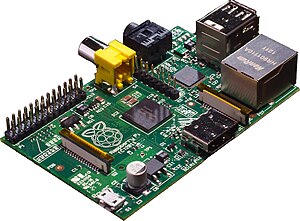
Currently we provide easy to install ARM images for the RaspBerry Pi and the Genesi Smartbook - the latter of which I am actually writing this post from. By the end of this month I hope to be able to add the MK802 I've written a bit about to our support devices as well.

The point of this post however is to see how much interest there is in us creating a Bodhi image for the new Nexus 7 tablet. I've had a couple of users express interest about it on our forums and there was positive buzz about it on the Ogg cast last night.

The main thing holding us back is a lack of developer hardware - I don't own a Nexus 7. We only need a single unit to get our work done, so if you are a Nexus 7 owner that has an interest in running Bodhi on your device and you can spare 5$ (or even 10$) please consider sending it our way via the button below so we can purchase a Nexus 7 to work with.

Edit/Update: In just 5 short days we've managed to collect enough to pick up a development unit! Hopefully we can have some Bodhi images live by the end of the month. If you are still looking to help support us - servers do take money to maintain. You can do so by donating directly to the Bodhi project.

Thanks to everyone who helped out.
~Jeff Hoogland

Selasa, 27 November 2012

Two Years of Bodhi, Three Years of Blogging

This year has flown by. My entire life - both on the internet and off the internet has been moving at a rapid pace and I have enjoyed almost every moment of it. I've been so focused on my last semester of graduate work that I completely forgot to make two posts I've been making every year.


The first is that Bodhi is two years old now! It was on November 16th, 2010 that I first announced the project I had started with a couple of friends. The project advanced rapidly and the team that we gathered was very pleased with where we were after just twelve months. Take a moment to look at the data graph in that previous link - in a nine month time span our highest throughput on the package server was under 1.5TB worth of data. We have made leaps and bounds since that point - in fact earlier this year we moved the main Bodhi package server from a VPS to a dedicated server because we had been consistently serving up over 5TB of packages each month. Beyond that our ISO image has been seeing over 25,000 downloads a month, over twice the number we saw in our first year.

The best part about all of this? Even with our increased overhead costs we have managed to stay 100% funded by user donations - meaning our main website and forums have been able to stay ad free (which I prefer). If you enjoy the Bodhi project I would ask that you please help support us by becoming a member, ordering some goodies or making a one time donation.

On a non-Bodhi related note, I've been publishing articles here on Thoughts on Technology for not one, not two, but three years now! I plan to continue publishing articles for many more years to come.

Cheers,
~Jeff Hoogland

Kamis, 13 September 2012

Bodhi Linux 2.1.0 Released

I'm happy to release to everyone our first scheduled update release of Bodhi Linux's 2.x.y branch - version 2.1.0. For those that want to get straight to the disc images you can find them in 32bit flavor here and 64bit here. There are a number of wonderful changes/improvements to this disc over our 2.0.1 disc released a couple of months ago. I'm going to outline the more important of the changes in this post, but you can always find our full change log here.

Before I dive into the changes - I'd like to just remind all existing Bodhi users that since this is simply an update release, you can easily update existing 2.x.y installs to these changes via the package manager.

Profiles and Themes:
The first thing you will notice are four fresh themes along with the elegant E17 Black and White theme appearing on this version of Bodhi's LiveCD:


Software:
We have a fresh build of Enlightenment and Terminology pre-installed on the disc. Beyond that our repositories contain the latest LibreOffice 3.6.1, Firefox 15 and Chromium 21 among a number of other current applications. The default kernel for this release is based on Linux 3.5

Two major software changes I'd like to highlight. First is that this build is now utilizing a much more recent version of the LXDM display manager. This updated version compiled from LXDM's GIT sources fixes a long standing issue with passwords that contain spaces and also adds support for user lists at the login screen:


This version of LXDM also comes with a very nice configuration tool:


Second, the PCManFM file manager has been dropped in favor of the Enlightenment native EFM:


This file manager lacks some advanced features (such as connecting to network shares), but it does support some nice features such as image and video previews. Those users still wanting PCManFM will be able to easily install it via the package manager.

Finally, if you have any issues with this live CD or Bodhi in general please open a support request on our user forums. The comment section of this post is not the best place to trouble shoot things.

~Jeff Hoogland

Selasa, 07 Agustus 2012

Bodhi's ARM Branch Moves to ARMHF

After doing some research and testing for the last week I have arrived at the conclusion that Bodhi's ARM branch will best serve our users by moving our core from Debian Wheezy ARMEL to utilize Debian Wheezy ARMHF. I'm not going to get into the technical difference between the two platforms here - just know that in general ARMHF is faster.

With this change however, there are some slight changes to our ARM repo details. If you have Debian Wheezy ARMHF installed on a device and wish to add the Bodhi repo to your sources the line you want to add is:

deb http://packages.bodhilinux.com/bodhi/ debian stable

Then you just install our bodhi-desktop package as before.

With regards to our officially supported ARM devices, you can find download links to our brand new ARMHF images for the RaspBerry Pi and Genesi Smartbook on our ARM downloads page. Our RaspBerry Pi build is built directly on top of Raspbian and incorporates all of their changes and improvements.


~Jeff Hoogland

Rabu, 01 Agustus 2012

HOWTO: Clone all Programs Installed via Apt

Today I would like to share a nifty trick for cloning your application selections installed via the apt-get package manager. It is as simple as running two commands. First on the system you wish to clone, open a terminal and run this command (which is on pastebin due to blogger formatting issues).

Next, simply copy the package-list to the system you wish to setup a copy on. Finally open a terminal and run:

xargs apt-get install -y < package-list

In the same directory you copied the package-list file too. Please note that this trick only works when your two systems in question have exactly the same sources/operating system version.

Cheers,
~Jeff Hoogland

Selasa, 31 Juli 2012

Bodhi Linux RaspBerry Pi Beta

Edit/Update: You can find the latest release here -> http://www.bodhilinux.com/downloads_mobile.php

A little over six weeks ago I posted a very early image of Bodhi for the RaspBerry Pi. Today I am happy to let everyone know that I have published what I consider to be a "beta" quality image:


The download comes in the form of a compressed .IMG file, which can be extracted and then written to an SD card (2GB minimum). The first thing worth noting in this release is that the default username/password are different:

Username: pi
Password: bodhilinux

As for changes, this release is now utilizing Terminology as it's default terminal emulator and PCManFM file browser has been replaced with the native EFM (Enlightenment File Manager). The issues our first image had with networking and flash drives should also be resolved with this release. Also worth noting is that the AppCenter is now configured to work by default in the Midori web browser - but the synaptic interface runs fairly slow on the Pi hardware.

Finally - if you have any issues with this image please open a support request in the RaspBerry Pi section of our user forums. That is a much better place to trouble shoot than the comments section on this post.


~Jeff Hoogland

Senin, 30 Juli 2012

Bodhi Linux 2.0.1 - Bug Fix Release

Some of you might be slightly confused by this posting since our 2.0.0 release was published just five days ago. No piece of software is perfect and our 2.0.0 release is no exception to this. Since we released last Thursday our 2.0.0 discs have received over 15,000 downloads - a number the Bodhi team and I are extremely happy with. With this large influx of users we have received a piles of user feedback and bug reports - some of which need to be dealt with right away (not two months from now when our next scheduled update release is set to come out).

With this in mind I would like to cut straight to the point and give you the disc downloads for 2.0.1 (as always torrent is fastest):


What was so pressing you ask that demanded we release bug fix ISO images now instead of waiting for our normal scheduled release? Well a few things:
  • Added a variety of firmware to the default install to greatly increase wireless support
  • Added support for booting the ISO image via grub2
  • Added some missing ACPI scripts so suspending works
  • Removed a few misc mentions of 10.04/1.4.0 left behind in documentation
Users that have already installed our 2.0.0 release (or alphas) and are keeping up to date with their software updates via the package manager will already be at our 2.0.1 release:


No need to reinstall for minor/bug fix releases - but I would encourage you to grab this latest ISO image for use with your live media.

Cheers,
~Jeff Hoogland

Kamis, 26 Juli 2012

Bodhi Linux 2.0.0 Released

Well boys and girls the wait is finally over. After two months in the making 2.0.0 is officially our stable release. This build features the stable Linux 3.2 kernel, PCManFM file manager, the latest version of the Midori browser:


and finally the brand spanking new Terminology terminal emulator:


Bodhi 2.0.0 is our first stable release to be offered in both 32 and 64bit flavors. Please note the torrent download is much faster than the direct download:


The Bodhi team and I would like to extend our thanks to everyone who made this release possible. Most notably the E17 team and our community of testers!

If you encounter an issue with this release I would please implore you to first check your download md5sum. If your download is fine I would then ask that you request help on our user forums - not in the comments section of this blog post.

Finally - if you enjoy using Bodhi and think this release works well I would encourage you to please send a message to your favorite Linux/Technology writers letting them know there is some new Bodhi goodness to be had! Also - if you have some spare bandwidth I would encourage you to seed our torrents for awhile.

Cheers,
~Jeff Hoogland

Rabu, 18 Juli 2012

Bodhi Linux 2.0.0 Release Candidate

A little over six weeks ago I posted about the first Bodhi Linux 2.0.0 public image. We have had three other builds release since then and today I would like to announce the availability of build 5 for download. I am stamping this build as our "release candidate" meaning that is is a stable working environment and something extremely close to this release will become our "stable"/final 2.0.0 release by the end of this month.

What is missing from this release still? Of note our AppCenter is still in the process of being transitioned over to work fully with this new release. Meaning a few of the packages there might not be found yet in the 2.0.0 repositories. If you do find an application there that doesn't install properly I encourage you to let us know on our user forums. Also worth noting is that none of the current .BOD files obtained via the "Download" buttons are functional with 2.0.0 and they should not under any circumstance be installed on a 2.0.0 system. There will be an announcement posted here when they are ready.

Finally - you can find the 32/64bit disc images for download via source forge here.

~Jeff Hoogland

Minggu, 08 Juli 2012

HOWTO: Make your QT Applications Blend In

Since Bodhi Linux includes GTK applications by default, you will find they have a fairly neutral tone that blends fairly well with the rest of the system. Beyond this Enlightenment has a built in tool for changing the look of GTK applications.

What is a person to do though when they install VLC or some other QT application for the first time and it looks like this:


First off - don't panic! It is a fairly simple/quick fix to get your QT applications to blend in with the rest of your desktop. You first simply need to install the QT theme manager - on Debian based systems such as Bodhi this can be done from the command line via:

sudo apt-get install qt4-qtconfig

Once this package is installed a new option should appear in your menu under "Preferences" labeled "Qt 4 Settings". Launching this will present you with a window the looks something like this:


Only your "GUI Style" will be something other "GTK+" by default. To change this simply select "GTK+" from the drop down menu and then close the settings manager.

You should now be all set with nicer looking QT applications:


Cheers,
~Jeff Hoogland

Selasa, 03 Juli 2012

Some Bodhi Linux Video Goodness

I'd like to take a moment to share a few wonderful videos one of the Bodhi team members has taken the time to put together. This first is a short sound byte/advertisement for our upcoming 2.0.0 release:


These next two show case the winners of our Desktop of the Week contest:

2nd Quarter Winners 2012


1st Quarter Winners 2012


Enjoy!
~Jeff Hoogland

Selasa, 12 Juni 2012

Bodhi Linux ARM Alpha Release for RaspBerry Pi

Edit/Update: You can find the latest release here -> http://www.bodhilinux.com/downloads_mobile.php

I've been busy with lots of different Bodhi things of the late. The latest of my many projects has been getting the Bodhi desktop functional on the RaspBerry Pi:


This first release while having some rough edges does give you a fully functional Enlightenment desktop on top of a Debian Wheezy ARMEL base. I am providing two different downloads which you can find on our source forge page here. The first is an easy to use .img file that can be written to 4GB or larger SD card.

If you dislike .img files I've also provided tar files that contain the boot partition (which should be written to a vfat partition at the start of an SD card) and the root file system (which should be written to the second partition on a card that is extX).

The default logins for this image are:

bodhi/bodhi
root/raspberry

The "bodhi" user has sudo rights by default.

If you hit any snags or find bugs with this image please let us know in the RaspBerryPi section of our user forums (not the comment section of this blog!) so we can improve this release.


~Jeff Hoogland

Senin, 11 Juni 2012

Bodhi Linux ARM Release Candidate for Genesi

Edit/Update: You can find the latest release here -> http://www.bodhilinux.com/downloads_mobile.php

Early this year I posted about our beta release of Bodhi on ARM for the Genesi Smartbook. Today I would like to finally follow up that beta release with something that I consider "release candidate" quality. The hardware is 99% functional with this release including the ability to suspend the system. Other small improvements include functional "plug and play" for flash drives and a mostly functional AppCenter!

There are three different downloads provided that you can find here. It is recommended you use one of the provided .img files (and check the md5sum after such a large download!). For developers interested in seeing the raw file system you can also download it in .tar.xz form.

The default login information for this release image are:

bodhi/bodhi

If you run into any issues please let us know in the Genesi section of our forums.

~Jeff Hoogland

A Bodhi Linux 2.0.0 FAQ

I've been getting a good deal of redundant questions regarding Bodhi's upcoming 2.0.0 release. Today I would like to address a few of the more common questions I've been getting.

When is the release date?

No idea. I live strictly by "its ready when its ready" philosophy for the software I work on. Setting strict release dates causes buggy software to be marked as "stable". Our targeted release month is July - but who knows it could be ready before then.

What is the main difference between 2.0.0 and 1.x.y?

The Ubuntu base is the main difference. Our 1.x.y series is based on Ubuntu 10.04, while 2.0.0 is built on top of 12.04

Can I upgrade my Bodhi Linux 1.x.y install to Bodhi 2.0.0?

No. A full reinstall will be required.

Will there be 64bit support?

Yep.

What are the minimum system requirements?

The minimum system requirements will be about the same as Bodhi 1.x.y. Currently they are looking like:
300mhz processor
128mb RAM
2gig of hard drive space

Will it be faster than Bodhi 1.x.y?

Could be. It will not be slower to say the least.

How big will the disc download be?

Since we do not have a final stable version as of yet I cannot say for sure. Expect it to be under 500mb though.

Can I upgrade from 2.0.0 pre-release to the final 2.0.0 version?

Yep.

I think that about covers all the common questions I have gotten. If you have another question regarding this release feel free to drop a comment below.

~Jeff Hoogland

Rabu, 30 Mei 2012

A Bodhi Linux 2.0.0 Beginning

The Bodhi team and I are happy to announce the first pre-release (Read: Not suitable for daily usage machines) of our next major release Bodhi Linux 2.0.0! This release is considered alpha quality and is intended to allow our community to help test this release before it becomes our "stable" version.

The goal of a new major release is not to introduce ground breaking new features. The goal of a major Bodhi release is to allow our distro to transition to the next major Ubuntu LTS as a distro base. That is right folks - these ISO images are built on top of the recently released Ubuntu 12.04 (where is all previous Bodhi versions had been based on Ubuntu 10.04). The most noteworthy thing this release introduces is native support for 64bit. From this point forward all Bodhi releases will come in x86 and 64bit flavors.


Without further wait you can find these discs for download via source forge here.


Things to note with these CD images:

Not everything is going to work - we know this and so should you. The important thing is that when you find something that doesn't work let us know so we can fix it!  The best solution for discussing issues you find is our user forums (not the comments section on this post).

I had a minor brain fart when building the latest set of packages for this image - which means when you select Bodhi Linux->About from the main menu, the version number still appears as "1.4.0", this numbering issue will be resolved within the next week via package manager updates.

The download size is large. Yep - there is nothing wrong with your eyes, those ISO images are kinda fat compared to previous Bodhi releases. This is because I have yet to start manually stripping out packages from the disc that aren't needed. That will be happening between now and the stable release (if you'd like to help with this, please feel free to post lists of pre-installed packages you notice that aren't needed).

The installer slides on the 32bit image have a permissions issue that prevents them from being displayed by the installer by default.

The network manager is not auto launching for the live user - it can be launched manually.

Network manager needs to be run with sudo to add connections - for a fix to this see here.

I will update this list with known issues as they are found/reported.


Thanks for reading and helping us test! Lets make sure this next release is as stable (and awesome) as possible.

~Jeff Hoogland

Jumat, 30 Maret 2012

Clarifying details about E17 and Compositing

I just wanted to take a moment to clarify the state of compositing with the Enlightenment desktop. In two recent reviews of Bodhi Linux the authors mucked up a few of the details concerning compositing and E17. I can't really fault them for their misinformation (as a whole both are really good write ups) because the details about compositing and E17 aren't very well documented. Today I would like to clarify a few things about using compositing with Enlightenment DR17.

First - there are currently two different compositing engines for Enlightenment. One of these is "Ecomorph" and it is the most commonly referenced when talking about compositing and E17. Ecomorph is not housed in the official E SVN and is not installed in Bodhi by default (you can find details on getting the Ecomorph source code here). Ecomorph is a slightly rough port of the famous "compiz fusion" for Enlightenment. It does not provide a consistent experience across a variety of hardware and it is no longer under active development - thus it is not recommended for usage.

For those who want a pleasant compositing experience with Enlightenment the E team has been developing their own compositing manager from scratch. E's compositing manager functions either via a software engine or with OpenGL support. This compositing engine is not based on, nor does it have any ties to Compiz. This is also the compositing engine you will find in use on the "Compositing" profile Bodhi ships with. This engine is not as feature rich as Compiz as of yet, but slowly it is gaining more and more advanced features.


If you have any questions or if anything is still unclear feel free to drop a comment below.

~Jeff Hoogland

Kamis, 22 Maret 2012

Bodhi Linux 1.4.0 Released

The end of March is approaching and that means our first quarter update release is here! As is the case with all our update release packages are fairly fresh. Enlightenment has been built from a fresh SVN pull from March 20th and the default Midori browser has been updated to the latest release:


A more current build of the Linux kernel is in use as well. We are using the 3.2.0-19 build from upstream Ubuntu sources this release:


Beyond that you will find current versions of other non-default software in our repositories including Firefox 11, Chromium 17 and LibreOffice 3.5

A new feature this LiveCD sports that previous releases lacked is the ability to boot fully into system memory (RAM). Selecting this option will take slightly long for the live environment to boot (and needs at least 512meg RAM) - but once it is fully loaded things will run much quicker than they do from the CD and you can even eject/remove the disc! Neat right?

We also implemented a number of minor improvements to the base system. These include resolving an issue that had prevented PCManFM's application menu from working:


E17's everything module calculator feature now works out of the box:


Enlightenment's notification module is now enabled by default in our profiles:


Our setup wizard got some much needed color improvements:


and finally - as always - the default theme selection got a rotation:


On the release schedule I posted back in December I detailed that we would be having one more update release (1.5.0) to our 10.04 base before Bodhi 2.0.0 releases based on Ubuntu 12.04 I am currently undecided if I still want this to be the case or if the team and I will move directly to working on 2.0.0 - at any rate don't expect our next stable release till some time in June!

Oh - almost forgot. If you want to download our 1.4.0 release you can find a directly download hosted via source forge here or I always like to recommend using (and seeding!) our high speed torrent download found here. Current users please remember this is simply an update release - meaning you can upgrade your current Bodhi release to 1.4.0 by following the instructions found here.

Cheers,
~Jeff Hoogland