Tampilkan postingan dengan label software. Tampilkan semua postingan

Minggu, 08 Juli 2012

HOWTO: Make your QT Applications Blend In

Since Bodhi Linux includes GTK applications by default, you will find they have a fairly neutral tone that blends fairly well with the rest of the system. Beyond this Enlightenment has a built in tool for changing the look of GTK applications.

What is a person to do though when they install VLC or some other QT application for the first time and it looks like this:


First off - don't panic! It is a fairly simple/quick fix to get your QT applications to blend in with the rest of your desktop. You first simply need to install the QT theme manager - on Debian based systems such as Bodhi this can be done from the command line via:

sudo apt-get install qt4-qtconfig

Once this package is installed a new option should appear in your menu under "Preferences" labeled "Qt 4 Settings". Launching this will present you with a window the looks something like this:


Only your "GUI Style" will be something other "GTK+" by default. To change this simply select "GTK+" from the drop down menu and then close the settings manager.

You should now be all set with nicer looking QT applications:


Cheers,
~Jeff Hoogland

Senin, 14 Mei 2012

HOWTO: Diablo 3 on Linux

Like many nerds around the world this evening I am prepping for what, odds are, will be the first of many all-nighters involving Blizzard's soon-to-be-released Diablo III (which releases tonight at midnight!). If you have been by my blog before then odds are you will know that I prefer to do as much of my gaming as possible on my operating system of choice: Linux. Something else you may or may not know is that I am also a large fan of the company Code Weavers that produces the commercial Wine software Crossover.

Want to know the reason I am such a fan of Crossover? A few weekends ago I spent about 6 hours trying to get Wine sources to compile with various patches to make the Diablo 3 open beta work on Linux. The result? I ended up hanging my head in defeat and just playing on my OSx86 system so I didn't miss the weekend event. At that point Diablo 3 didn't work OOTB on default Wine builds or Crossover.

This morning I dropped by #crossover on FreeNode to check in with the Crossover folks to see what their plans were for the Diablo 3 release due out tonight - were us Linux folks going to have to wait?

Nope!

The Diablo 3 release is something they had been very aware of and had been testing rigorously in-house. I was informed they had internal builds of Crossover where Diablo 3 was functional enough to play this very day. In fact within three hours of my speaking with them they had an "unsupported build" release that was functional with the Diablo 3 installer (note: if you are not a current Crossover customer that above link will not work for you).

I promptly installed the update and was on my merry way:


As of now if you are using Crossover 11.1 or newer Diablo 3 is now officially supported,

Now - if you are not interested in supporting Crossover - you can attempt to succeed where I failed and compile Wine with some of the patches listed on the Diablo 3 Beta AppDB page. Odds are if you wait for the next Wine developmental release or two, Diablo 3 will just start working by default - the Crossover folks are one of the lead contributors to the Wine project and most of their code improvements go upstream.

Trouble Shooting Tips:
If you are having issues getting it to run via the latest Wine builds it might be worth your while to use winetricks to install the "vcrun2008" package.

If your login attempt is hanging at the "authenticating credentials" step, exit Diablo, open a terminal and run:

echo 0|sudo tee /proc/sys/kernel/yama/ptrace_scope

~Jeff Hoogland

Sabtu, 21 April 2012

HOWTO: Enable nVidia Graphics on OSX86

So I've been tooling around with OSX on my Sager laptop again and spent a short bit of time running around in circles trying to get my nVidia graphics enabled again. Getting this done with a modern OSX86 release is fairly easy if you know how (it doesn't even require installing a kext).

Simply open a terminal and run:

sudo nano /Library/Preferences/SystemConfiguration/com.apple.Boot.plist

Type your password and press enter. In the file that is opened simply add these lines. Above the line that reads this.

Press ctrl+x to close the file and press "y" followed by enter to save the changes. Reboot your Hackintosh and you should be good to go. I'll be enjoying the Diablo 3 beta on mine.


As a side note sorry for the lack of posts this month. My school semester is coming to an end and life has been crazy of the late - expect some good postings come May (including hopefully a HOWTO for running Diablo 3 on Linux).

~Jeff Hoogland

Jumat, 30 Maret 2012

Clarifying details about E17 and Compositing

I just wanted to take a moment to clarify the state of compositing with the Enlightenment desktop. In two recent reviews of Bodhi Linux the authors mucked up a few of the details concerning compositing and E17. I can't really fault them for their misinformation (as a whole both are really good write ups) because the details about compositing and E17 aren't very well documented. Today I would like to clarify a few things about using compositing with Enlightenment DR17.

First - there are currently two different compositing engines for Enlightenment. One of these is "Ecomorph" and it is the most commonly referenced when talking about compositing and E17. Ecomorph is not housed in the official E SVN and is not installed in Bodhi by default (you can find details on getting the Ecomorph source code here). Ecomorph is a slightly rough port of the famous "compiz fusion" for Enlightenment. It does not provide a consistent experience across a variety of hardware and it is no longer under active development - thus it is not recommended for usage.

For those who want a pleasant compositing experience with Enlightenment the E team has been developing their own compositing manager from scratch. E's compositing manager functions either via a software engine or with OpenGL support. This compositing engine is not based on, nor does it have any ties to Compiz. This is also the compositing engine you will find in use on the "Compositing" profile Bodhi ships with. This engine is not as feature rich as Compiz as of yet, but slowly it is gaining more and more advanced features.


If you have any questions or if anything is still unclear feel free to drop a comment below.

~Jeff Hoogland

Selasa, 13 Maret 2012

HOWTO: APTURL with Midori Browser

The Bodhi Linux App Center utilises APTURL technology to allow users one click install for popular Linux software. We also ship with the Midori browser by default. If you are using a different Debian based distro and wish to have APTURL function in the Midori browser following is what I do to make it work on Bodhi:

In your ~/.local/share/applications directory create a file called:

mimeapps.list

For it's contents paste in:

[Added Associations]
x-scheme-handler/apt=apturl.desktop;

Finally we need to create one more file. In your /usr/share/applications make a file called:

apturl.desktop

For it's contents paste in:

[Desktop Entry]
Type=Application
Name=AptURL
Categories=Network;
MimeType=x-scheme-handler/apt;application/apt;
Exec=apturl %u
Terminal=false
NoDisplay=true

Note that you will need root access (or sudo) to create this second file in the proper location.

Restart Midori and now clicking on APTURL links should work (make sure you also have APTURL installed).

~Jeff Hoogland

Rabu, 22 Februari 2012

Rank your Linux-Nerd Level

So you love your penguin powered computer huh? Just how does your level of Linux nerd stack up compared to the other Linux fans you know? Tally your points using the information below and find out.

The Easy Points (+1 each):

You know what Linux is.

You can name the Linux mascot.

You know what a "kernel" is (and I'm not talking about pop-corn).

You know the difference between Android, Ubuntu, and Linux (thats right folks - there is more to Linux than Ubuntu).

You use Linux every day.

The Average Nerd (+2 each):

You have installed a Linux-based OS on your own.

You have asked for help on a Linux forum/chat room.

You know the difference between Linux, BSD, Solaris and Unix.

You read FOSS new sites daily.

You use "free as in beer" to describe all things that are without cost - not just software.

The Serious Nerd (+3 each):

You solve more problems for other people than you ask about yourself on Linux forums/chat rooms.

You can install and configure Gentoo/Arch without documentation.

You recompile software for fun or too add a new build flag.

You know the difference between apt-get, yum, rpm and dpkg.

You own Linux merchandise and display it as often as possible (t-shirt, coffee mug, ect.)

The Duty of a Nerd (+4 each):

You have edited code that didn't want to compile so it would build correctly.

You contribute to/write for/maintain a Linux news website.

You own more computers than you can count on one hand and they all run some type of Linux.

The Nerdiest of them All (+5 each):

You maintain/regularly contribute code to an open source project.

You have written a patch that was accepted to the main-line Linux kernel.

OK go ahead and take a moment to tally up your points. Lets see what your total says about you:

Linux Ignorant (0-5 points):

Catch phrase: "Whats a 'linux'?"

Linux Newbie (6-10 points):

Catch phrase: "Hey guys - check out this new OS I found. It's free!"

Linux Jockey (11-20 points):

Catch phrase: "Here try this live CD."

Linux Tech (21-30 points):

Catch phrase: "OK first open a terminal..."

Linux Expert (31-40 points):

Catch phrase: "Hang on, I've got some code compiling."

Linux Master (41-50 points):

Catch Phrase: "Once I finish this software patch things are going to be sweet!"

Linux God (51+ points):

Catch Phrase: "Give me a moment, I am praying to Tux."

How do you rank on my little scale? Also please note this short little "quiz" is intended in good fun - it is not meant to be taken seriously in any way.

~Jeff Hoogland

Flash, Chrome and a Mole Hill

In case you haven't heard yet Adobe made a blog post today detailing a new partnership with Google. If you haven't already follow my link above and read Adobe's post - it is only a few paragraphs. I've already seen this news reposted on several open-source news sites and honestly I think it is great deal of fuss over something that ultimately won't matter much.

I have a few reasons for saying this, here is my train of thought on the topic:

1.) We are getting flash 11.2 as a normal browser plugin and then this version will see security updates for five years. A good deal of flash content doesn't break backwards compatibility (heck I still use flash 9.x on my N900 without issues), this means you have at least five more years of using flash in your browser of choice on Linux.

2.) I know, odds are you know it, heck even Adobe knows it - flash is going the way of the dinosaurs with regards to web technology. Does this mean we are going to have a flash free web tomorrow? No of course not. It does mean though that as new, better content gets created for the web it is less and less likely to utilise flash. Five years from now flash not existing for Linux could seriously be a non-issue.

3.) Worst case scenario: Flash doesn't die out and five years from now we all have to install Chrome when we need to access some poorly designed flash-based website. It would suck, but it would hardly be the end of the world.


So for now, lets not make a mountain out of something that very well appears to be nothing more than a molehill.

~Jeff Hoogland

Kamis, 09 Februari 2012

HOWTO: Run your Games in a new Xserver

When I play a game that runs full screen on Linux but still want to have things running in the background I'd like to check on here and there without closing my game I typically launch my game into a new Xserver instance. This fairly simple setup allows you to change between Xserver instances by using ctrl+alt+f7 and ctrl+alt+f8.

To launch your application into a new Xserver instance you simply need to launch the program as follows (I'll use Desura in my example):

xinit /home/honey/desura/desura %U -- :1

Once you run this your screen will flick once or twice as the new X instance is created and the program is automatically launched within it. This new X will be accessible via the keyboard shortcut ctrl+alt+f8, to get back to your previous X instance simply press ctrl+alt+f7.

Now, one other thing to note is that on some Linux distributions you may be greeted with the following message when you try to run xinit as a normal user:

X: user not authorized to run the X server, aborting.

Don't panic, the fix for this is also simple. In terminal run:

sudo nano /etc/X11/Xwrapper.config

This will open a file for editing - we only need to adjust one line. Make sure somewhere in this file is the line:
allowed_users=anybody

Save and close the file and the above xinit file should now work. Happy gaming folks!

~Jeff Hoogland

Selasa, 07 Februari 2012

LibreOffice Math/Formula Editor Examples

While I love technology another one of my passions is mathematics. I am currently working on a graduate degree in this field. I like to type a good deal of my course work so it looks presentable.

I know the industry standard for typing mathematics is using a software such a LaTex or Lyx, but I haven't quite made the leap from using LibreOffice as my every day word processor as of yet. Thankfully, LibreOffice comes with a fairly power equation editor - if you know how to use it! The following is my personal cheat sheet for using the editor - enjoy!


If you'd like to download a copy of this you can easily copy and paste I've got an ODT version here and a PDF version here.

~Jeff Hoogland

Senin, 30 Januari 2012

Jeff's List of his favorite FOSS Applications

People like stuff that is free. People like lists of things. Today I am going to put these two things together with the following list of my favourite FOSS (free open source software) applications.

Web Browser: Firefox

Platforms: Linux, Windows and OSX


I know Chrome/Chromium have gained a lot of popularity in the past year, but I still like Firefox most as my primary web browser. My two pmain reasons for this are the fact that it generally renders text "nicer" than most webkit-based browsers and the fact that it integrates with most Linux desktops more fully than Chromium does.

IRC Client: Xchat

Platforms: Linux and Windows


Xchat is a fairly straight forward GTK IRC client. It supports a variety of features, but also is clean enough to simply let me get right into the chat room I want without much configuration.

Instant Messenger: Pidgin

Platform: Linux, Windows and OSX


When it was first created it was known as "gaim", but today many know the popular GTK instant messenger client as "Pidgin". Supporting a number of messenger types including AIM, Yahoo, Google Talk, MSN and many others - Pidgin is a very versatile messaging client.

Torrent Client: Transmission

Platforms: Linux and OSX


Transmission is fairly light bit torrent client that has both GTK and QT interfaces. It is stable and fairly feature rich while staying out of the user's way. It supports many commonly used torrent features such as setting download/upload speed limits and prioritising downloads.

FTP Client: Filezilla

Platforms: Linux, Windows and OSX


The swiss army knife of FTP clients Filezilla supports many common transfer protocols including FTP, SFTP, FTPS, and FTPES.

PDF Viewer: ePDFViewer

Platform: Linux


ePDFViewer is a very simple and light weight PDF viewer that utilises the GTK and poppler libraries.

Office Suite:  Libre Office

Platforms: Linux, Windows and OSX


Libre Office is a full featured office suite that provides a word processor, spreadsheet editor, presentation creator and much more. It is written in C++/Java and was forked from OpenOffice.org a little over a year ago.

Video Editor: Openshot

Platform: Linux


Easily one of the best open source projects to be started in the last couple of years. Openshot is a non-linear video editor that is written in mostly in python and GTK. The interface is clean and generally makes finding whatever function you are looking for fairly easy.

Video Ripping: Handbrake

Platforms: Linux, Windows and OSX


Ever have a video DVD you purchased and wanted to backup in case you lose or scratch the disc? Handbrake is the perfect tool for this task. It will simultaneously rip and encode a variety of media formats to a variety of other different media formats.

Disc Burning: XFBurn
 
Platform: Linux


Part of the XFCE software collection XFBurn is a to the point disc burning software based on libburnia. In case you hadn't noticed by now I am a fan of "simple and clean" software and XFBurn is no exception to this rule.

Media Player: VLC

Platforms: Linux, Windows and OSX


VLC is a multi-media player that is written in QT. It's most valuable asset is the fact that all of it's many multi-media codecs are self contained - meaning it can play nearly any media format right after installation without the need for installing system wide codecs packages.

Now, take note that I mention these are my favorite applications - not that they are always the best application for every possible task. Odds are there are others that are just as good (or better) in some situations than the ones I listed. One of the best things about FOSS is the ability to choose what you want to use. So try lots of different software and find which applications work best for you.

~Jeff Hoogland

Rabu, 25 Januari 2012

Introducing E17's Notification Module

The Enlightenment developers are busily hacking away as always. There are so many SVN commits to the E repository that it is easy to over look new features if you aren't looking for them. A nifty little module recently made its way into the core of Enlightenment though - its called "Notification". Notification is a native E alternative to other notification daemons such as notify osd.

If you have a recent Enlightenment build you will find Notification under the core E modules:


Simply loading the module is enough for it to start working. However as is the case with most of the E17 desktop, the Notification module is fairly configurable:


The notifications themselves are sleek, simple and stay out of your way:


The Notification module should work with all applications that work with other notification daemons such as notify osd.

~Jeff Hoogland

Selasa, 24 Januari 2012

On the Topics of Software, Average Users and User Friendliness

The term "average user" is something you hear thrown around a lot with regards to software. Pro-Linux, on the desktop, people often make claims on why it Linux ready for this "average user" (shoot even I've done it on occasion). There are also those who feel Linux should be pigeon-holed into a server room and on to mobile devices, they will make the exact opposite claim. They say Linux on the desktop isn't ready for this "average user".

My question to you all is:

Who is this "Average User"?

I've often been told I am not one of these "average users" because I create and distribute software. Who is then? Is my brother the level designer an "average user"? Is my fiancée the accountant an "average user"? Is my mother the tutor an "average user"? What exactly is the criteria to be in the group of people so many seem to be trying so desperately to make software for?


Often hand-in-hand with this idea of an "average user" is the concept of "user friendliness". In fact a drive to make our user interfaces even more "user friendly" is what has caused the radical changes in the Gnome desktop (and of course the creation of Unity).

What is "User Friendly"?

From what I can gather, something is only "user friendly" if an "average user" can sit down in front of it and do exactly what they want with zero direction.

Where on earth did this idea come from?

When you first learned algebra - was it expected to be something you could just "figure out" with no guidance? How about learning a language? Science? History?

Why is the standard different for learning software?

Actually, I take that last question back. There are lots of classes for learning about software. I've seen classes for learning how to use Windows, Photoshop, Microsoft Office... the list goes on! Are these pieces of software considered "user friendly" and ready for the "average user" even though we offer classes to learn how to use them? Yep.

Why is the standard different for Linux then?

Some food of thought. Please give me some input on any/all of my questions by dropping a comment below.

~Jeff Hoogland

Rabu, 18 Januari 2012

Bloathi Linux

Bodhi Linux is mainly built around two things - the Enlightenment desktop and a minimalistic approach to software. Even with these goals stated we still have users (and review writers) that complain about the lack of pre-installed software Bodhi comes with by default.

With this in mind one of the Bodhi forum members, Timmy, has put together a remaster of the latest Bodhi ISO image that he has cleverly called

"Bloathi Linux" 


Bloathi is simply the latest Bodhi release with a slew of pre-installed software setup on it. By default it comes with:

Envision
GEdit (Replaces Leafpad)
Jockey-GTK (Maybe better known as "Hardware Drivers")
LXKeyMap (Keyboard Layout Switcher)
LXRandr (Monitor Settings)
XScreensaver
Sun Java 6 (JRE and plugin)
Gnome System Monitor
Gnome System Manager
Qalculate
Inkscape
LibreOffice
Pinta
Simple Scan
Firefox
Pidgin
Thunderbird
Transmission
DeaDBeeF
VLC
Xfburn
Adobe Acrobat Reader
ubuntu-restricted-extras
adobe-flashplugin
bodhi-filesharing
bodhi-printing


You can find the ISO (and md5sum) for the disc hosted on source forge here. If you'd like to make suggestions for Timmy, you can find a forum thread he has posted here.

~Jeff Hoogland

Jumat, 13 Januari 2012

New Job, Old Operating System

You really don't know how good something is until you don't have it any longer. This is a statement that is very much the truth. I started a new graduate assistant position this week at Illinois State University. I will be doing a variety of tasks in this position and some of them involve work on the computer.

The operating system on the computer I will be working on? You guessed it - Windows 7.

The last time I used Windows full time XP was still still the latest stable Windows release (cause lets be honest, I don't consider Vista a stable release). Kubuntu 7.04 was the first Linux LiveCD I ever burned and I haven't looked back since. Its amazing all the little things you miss when you don't have them any longer.

I was working in two applications at once, so instinctively I went to move the second application to a different workspace...

Only to realize I couldn't. 

I went to find a copy and paste manager, there wasn't one installed. So naturally I sought out the package manager to install one...

Wait, there isn't a package manager?

Comon - even the smart phones most people carry around have a "App Store" which is really just a front end for package management! Sure, I could just search for whatever application I wanted on Google - but installing applications that have access to system data from random internet sources just doesn't seem terribly safe.

The biggest annoyance I ran into (and someone please let me know if I can make Windows 7 do this)? alt+left click to move a window. I didn't realize how often I used that when pushing applications around on my screen. It just feels terribly inefficient to have to move the mouse all the way to the top of an application to relocate it on the screen.

It's really funny the things you don't realize you have gotten used to having. Needless to say the 20 hours a week I will be working on campus for this next year will be a trail in patience with technology for sure.

~Jeff Hoogland

Rabu, 04 Januari 2012

Three Great Linux Gaming Services/Applications

Today I would like to take a moment to talk about three different ways to get access to some great games on your Linux PC. They are DJL, Desura and Gameoltih.

DJL -

DJL is an installable application that manages various games you can install from their repository. Their repository currently contains over 120 games that are all free to download. The user interface is fairly well designed and is easy to navigate:

DJL installs all game files to a single folder that you configure the first time you launch the application. While it is nice having all your game data located in one place, the draw back to this is that the games are not installed with your distribution's package manager.

Something I really like about DJL is that you can sort the games both by the type of game that they are:


And by what license their code is provided under (if at all):


DJL is fully open source and is written in QT and Python 2.5. DJL does not provide access to purchasing closed source games for the Linux platform.

Desura -

Desura is very similar to DJL in many ways. It is also open source and an installable application for managing games:


As you will notice from the screen shot above Desura offers games for purchase - this is it's largest difference from DJL. Two other things worth noting is that Desura also provides community rankings of games and you can register a good deal of your Humble Bundle applications through Desura:


In addition to commercial games, Desura houses a good deal of free (both as in beer and as in freedom) applications. My only complaint is that Desura does not have as nice of a search function as DJL. Yes I can sort games by type or by who made them, but there is no (obvious) way to sort games by cost. Desura doesn't have quite as many games as DJL, but their catalog currently contains just under 100 titles for Linux.

Finally, Desura installs all of your applications into a single directory in the same way DJL does. It does not let you to select which folder everything gets installed into by default though (mine installed to ~/desura). You can however easily move this folder and create proper symlinks if you would like your game data stored elsewhere (like on a storage partition).

Gameolith -

This option is fairly different from the first two I listed. For those of you out there that are into the who "cloud movement" Gameolith will be perfect for you. Instead of having an installable application, Gameolith utilizes a web front end for installing and managing your games:

Unlike the first two options, Gameolith only allows you to obtain and install games for purchase (AKA non-free applications). Once you purchase a game it is automatically added to your profile page:

One real advantage Gameolith has over DJL and Desura is that games you purchase through Gameolith can be installed via your system's package manager so long as you are using a Debian or Fedora based Linux distribution:

As you can see they also provide both 32 and 64bit binaries. If your package manager digests something other than RPMs or DEBs you are not out of luck, Gameolith also provide generic compiled files in tarbel form:

The only major draw back to Gameolith is the size of their current software selection. As of posting this they have only 16 games for purchase.

Closing -

In short all three of these provide different features. Which is best for you depends on what your needs are as a user. As I know information can get spread out over a post like this the following is a quick table summary of which features each of these services have:
Feature:
DJL
Desura
Gameolith
Installable Client
x
x

Commcercial Games

x
x
Free Games
x
x

Web Interface

x
x
Package Manager


x
Needs No Account
x


Large Game Selection
x
x


Cheers,
~Jeff Hoogland

Kamis, 22 Desember 2011

HOWTO: Get right to X with No Display Manager

GDM, KDM, LXDM, LightDM - so many display managers so little time! If your not sure what a "Display Manager" does on your Linux system, in short it is the piece of software that starts your graphical user interface and manages your user login.  I've been doing more and more work with ARM hardware of the late and most times with embedded devices there is little (or no) need for a display manager to be present. You want to get right to your desktop and just start using the system.

If you have a single user computer odds are you also have no need for a display manager to be cluttering your system. The solution is to simply have your desktop GUI of choice auto-start when the computer turns on. To do this we are going to use a simple, but effective, piece of software cleverly called "NoDM".

Before we begin, you first need to disable or uninstall any current display managers running on the system (look into your display manager documentation on doing this, it varies with each display manager).

Next you need to install NoDM. On a Debian/Apt based system it is as simple as running:

sudo apt-get install nodm

After your package manager works it's magic you need to edit at least two lines in the NoDM configuration file. Typically this file is located at /etc/default/nodm, to edit it open it as super user with your preferred text editor. For example:

sudo leafpad /etc/default/nodm 

The default configuration file should look something like this. The two lines we need to edit most are:

NODM_ENABLED=false

and

NODM_USER=root

The first line you simply need to change to read:

NODM_ENABLED=true

The second line you need to make equal to the username you want to be logged in with.

Finally you need to tell your system what type of session to start when X is spawned. For instance I prefer to use the Enlightenment desktop, so in my ~/.xsession file I add the following line:

enlightenment_start

To add this line to your .xsession file via the CLI simply run:

echo enlightenment_start > ~/.xsession

If you are using a desktop other than Enlightenment you will need to figure out what that desktop's start up command is. Have any questions feel free to drop a comment below and I'll do my best to help out.

Cheers,
~Jeff Hoogland

Rabu, 21 Desember 2011

Linux Desktop Environment Round Up

A year and a half ago I did an entry entitled "Overview and Explanation of Linux Desktop Environments". Anyone that is in the technology field (or knows even a little bit about it) knows that 18 months is a like a life time in the world of tech. Today I would like to re-cap my previous post with a few additions that have been added in recent months and mention a few desktops I missed last time.

I'm going to list a good deal of desktops today, so in order to keep things organized I'm going to group them based on the toolkit they are written in.

GTK Desktops

Gnome Shell -

The flagship desktop for a number of popular Linux distributions (including Red Hat's community driven Fedora). Gnome Shell has taken a good deal of flak in recent months due to the drastic changes this release implemented compared to the previous Gnome 2 version. As of this posting the latest version of Gnome Shell is 3.2 and it looks something like this:


Gnome Shell is written in C (and some Java Script) and utilizes the GTK3 toolkit.

Mate -

This is a fairly recent fork of the code base of the older Gnome 2 desktop. With the idea of "don't fix what isn't broken" the Mate desktop sticks to maintaining the a Gnome 2 desktop experience without making drastic changes. For many Linux users it will be a familiar and welcoming experience:


Since Mate is a fork of the old Gnome 2 code base it utilizes the GTK2 toolkit. Mate is still a very new project and as such no Linux distributions use it as their default desktop currently.

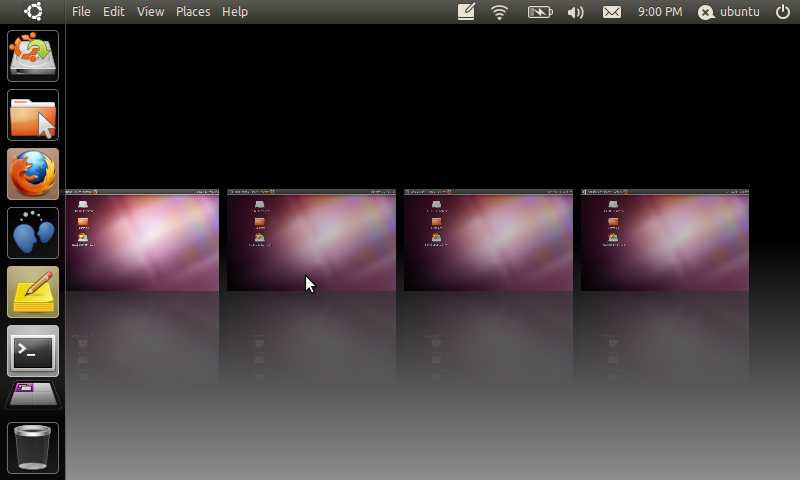
Unity -

The brainchild of Ubuntu's SABDFL, Unity is a desktop also written in the GTK3 toolkit. Similar to Gnome Shell, Unity brought with it drastic change to the Linux desktop experience. Whether that change is for better or worse really depends on who you ask. The Unity desktop is fairly new, but it has gone through heavy development work in the last year due to the large testing base of the Ubuntu community and the other resources Canonical has available to them. At any rate when you first load Unity your desktop will look something like:


Unity is the default desktop for the Ubuntu Linux distribution.

LXDE -

This desktop utilizes the GTK2 toolkit and has a focus on speed. Written to be lightweight LXDE will take only a small toll on your computer's resources. One of the best things about LXDE is that all of it's pieces are fully independent. This means you can use the LXDE file manager (or any other part) under any other desktop without having to install all of LXDE with it. LXDE is a more traditional desktop setup and has a similar default layout to Windows 2000/XP:


LXDE is the default desktop of the Peppermint Linux distribution.

XFCE

Slightly older and more mature than LXDE, XFCE is also a desktop written in GTK2 that is designed to be lightweight. XFCE latest version as of this posting is 4.8 and it's default layout looks something like:


The primary version of Salix OS features the XFCE desktop.

Cinnamon -

This is a very new desktop. So new in fact that if you click the above link you will see it simply goes to a GITHub page. Cinnamon is a fork of the Gnome Shell code base that is going to be maintained by the Linux Mint developers. It's goal is to utilize advanced features the GTK3 toolkit while still providing a more traditional desktop experience. An early screenshot of this desktop looks something like:


This is only speculation, but since the Linux Mint team is going to be maintaining this desktop one would guess that their distribution will be using it eventually as their default desktop.

QT Desktops

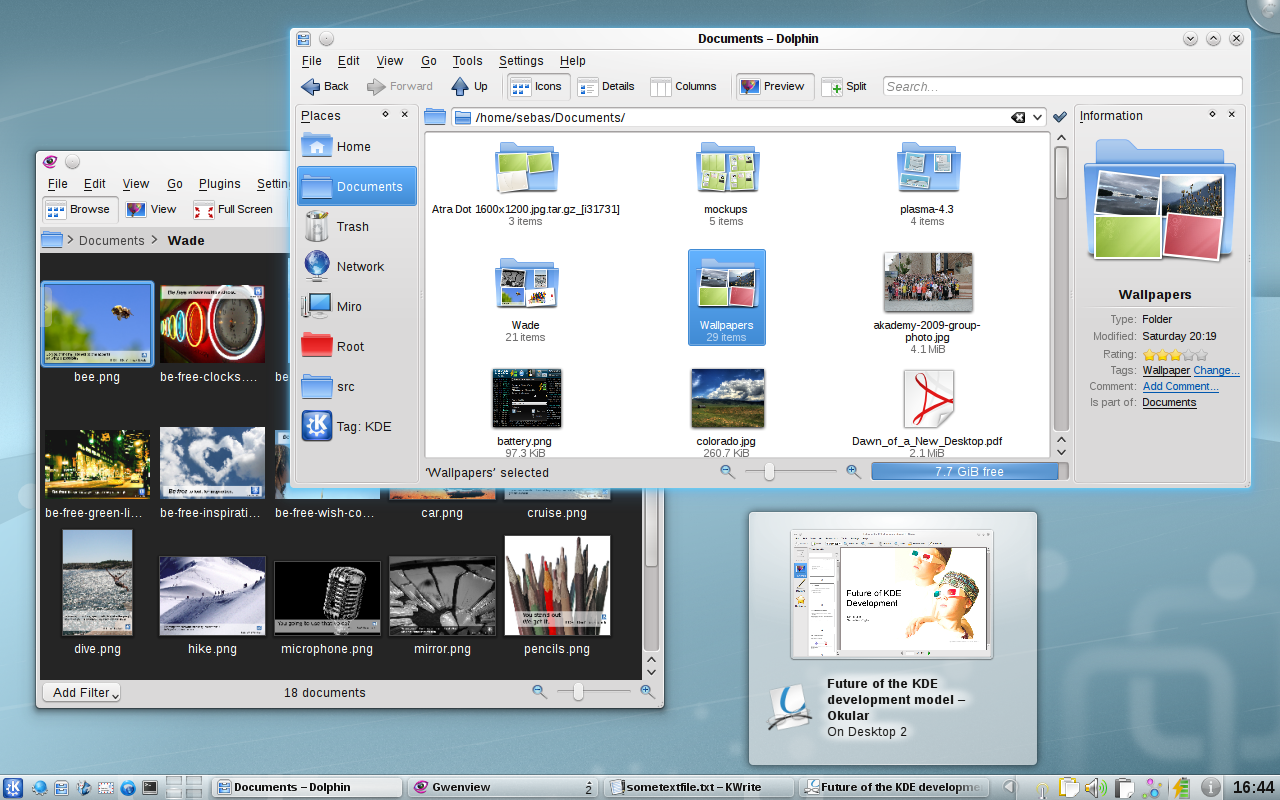
KDE -

This is one of the oldest Linux desktop environments. KDE provides a full and rich user experience. KDE is modular and provides a number of widgets you can add and remove from your desktop. KDE is also fairly flexible in appearance and offers both a traditional looking desktop layout:


And a "netbook" layout that is optimized for small/touch screens:


As of this posting KDE's latest stable release is 4.7. In my opinion Chakra Linux provides one of the best KDE experiences to date.

Trinity -

The Trinity desktop does for KDE's older 3.5 release what the Mate desktop does for Gnome's 2.x series. It's goal is to simply maintain the old desktop, fix bugs and keep it functional. The latest release as of this posting is 3.5.13 and it looks something like this:


At this current point there are not any Linux distributions that use Trinity as their default desktop.

Razor -

Sometimes called "Razor QT" is what I would call the "LXDE" of QT desktop environments. It aims to be modern and functional while still maintaining a light weight status. This is also a fairly new project as far a software goes (currently only at a 0.4 release), but it is functional. Currently it's default desktop looks fairly close to this:


As of yet there are no Linux distributions that use Razor QT as their default desktop.

EFL Desktop

Enlightenment -

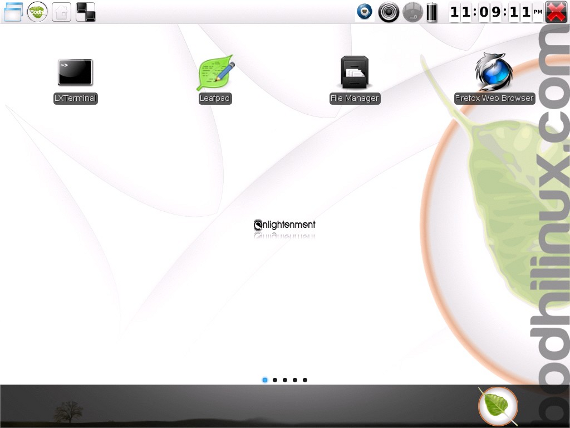
E17 or Enlightenment is currently the only desktop environment based on the EFLs (Enlightenment Foundation Libraries). E17 is currently under heavy development (and thus lacking some features), but in it's current state it is fast, flexible and stable. E17 is a modular desktop that is highly customizable. It can have a more traditional desktop layout:


Or one that is more optimized for a touch screen: 


Bodhi Linux is a distribution that features Enlightenment as it's default desktop.

Window Managers

Beyond the various desktops, there are a number of Window Managers that can be used either in combination with the above desktops or on their own. I am only going to talk about one of these Window Managers today, but you can find a fairly good list of them here.

Openbox -

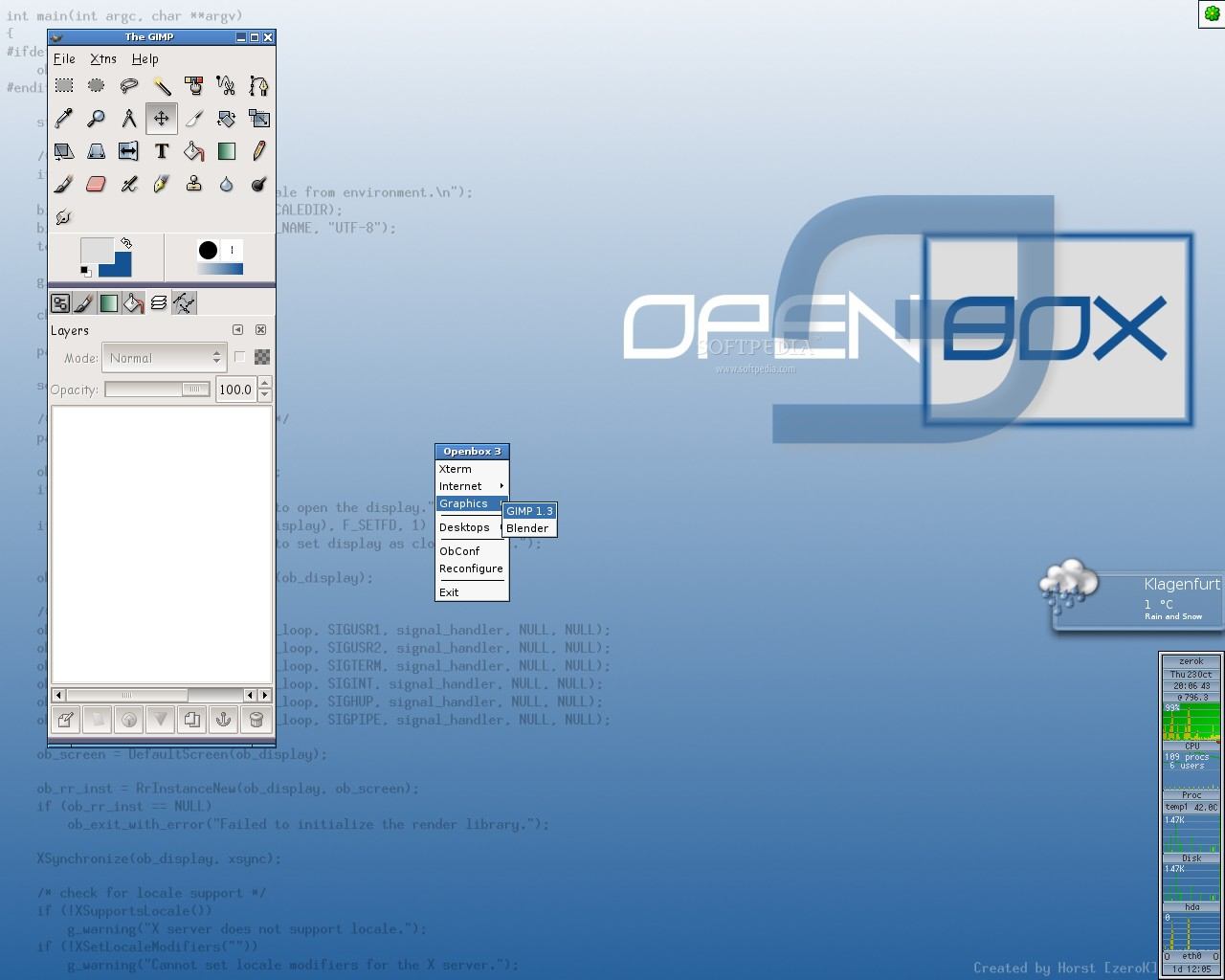
The Openbox Window Manager is easily the most popular Window Manager to date. It is favored due largely to how fast it is. It is recommended for use with both the LXDE and Razor QT desktops. Openbox is fairly flexible though and can be used all on it's own. If you are using pure Openbox it can look like a variety of things including:


ArchBang is a Linux distribution that utilizes just the Openbox Window Manager.

Follow Up

Which desktop is right for you will vary based on your needs. The best piece of advice I can give is try a few different ones out before settling on one. Hopefully you learned as much from reading this as I did from writing it. I believe I covered at least a small bit about each of what I believe to be all of the most important/major desktops. If I am missing anything or you would like to add something feel free to do so by adding a comment below.

Cheers,
~Jeff Hoogland

Senin, 19 Desember 2011

Application Spotlight: Qalculate!

Today's application is my favorite calculator on a desktop computer (and my N900). It is called Qalculate!:


Qalculate! has all the features you expect from a calculator and has a fairly straight forward layout:


I like Qalculate! because in addition to being fairly simplistic in appearance it is also a powerful tool. Qalculate! supports creating your own functions and by default it comes with a slew of it's own:


As you may note from the menu Qalculate! also comes pre-programmed with a variety of scientific variables and various unit conversions (because the US is silly and still doesn't use the metric system!).

Beyond the functionality of Qalculate! it is also a well written tool because the calculations/tasks it performs are completed separated from the GUI front end. This means Qalculate! comes with more than one front end, currently it has both GTK and QT options (and I hope to see an EFL front end some day). If you have not yet tried Qalculate! out before I highly recommend it. You should be able to easily find and install it from your distribution's repositories (Bodhi users can also find it in the appcenter).

Cheers,
~Jeff Hoogland