Tampilkan postingan dengan label enlightenment. Tampilkan semua postingan

Jumat, 06 Juli 2012

E17 heading towards a Stable Release - No Really!

I've been pushing the Enlightenment desktop for some time now and for as long as I've been promoting it I've also been warning folks that it is under heavy development. Well folks - Duke Nuke'em Forever might have beat them to a release, but E team is prepping for a major (stable!) release themselves.

The E release manager has setup a wordpress you can find here to follow more specific details about the upcoming release. What can you do to help out with getting E17 on the road to release as a end user? Why filing bug reports of course! One thing worth noting is that if you are filing bug reports you should be keeping as close the latest SVN version as possible.

Finally - if it has been awhile since you've tried the Enlightenment desktop now is the perfect time! If you aren't inclined to be compiling software from source Bodhi Linux provides one of the best default implementations of E17 around. Arch Linux and Gentoo also provide fairly current builds of E17 in their community supported repositories.

2012 - the year of an E17 Release!


~Jeff Hoogland

Rabu, 30 Mei 2012

HOWTO: Give Network Manager Sufficient Privileges

Nm-applet is easily one of the most flexible network connection tools available under modern Linux distributions today. Because of this it is my network manager of choice. The only issue is that under a good deal of modern window managers (such as E17) nm-applet doesn't let your normal user connect to new networks without a bit of additional configuration.

The following is how to get around the message:

Failed to add new connection: (32) Insufficient privileges.

From the 0.9.x revision of the network manager.

It is a fairly simple fix that simply involves creating a configuration file. Crack open your terminal emulator of choice and run:

sudo nano /etc/polkit-1/localauthority/50-local.d/org.freedesktop.NetworkManager.pkla

For the contents of this file simply paste this and then save+close the file.

Note if your user will need to be part of the netdev group for that code to function (if you don't have a netdev group, any group your user is a part of will work). To check the groups your current user is in simply run groups myusername in terminal (replace myusername with the name of your user clearly).

~Jeff Hoogland

Jumat, 30 Maret 2012

Clarifying details about E17 and Compositing

I just wanted to take a moment to clarify the state of compositing with the Enlightenment desktop. In two recent reviews of Bodhi Linux the authors mucked up a few of the details concerning compositing and E17. I can't really fault them for their misinformation (as a whole both are really good write ups) because the details about compositing and E17 aren't very well documented. Today I would like to clarify a few things about using compositing with Enlightenment DR17.

First - there are currently two different compositing engines for Enlightenment. One of these is "Ecomorph" and it is the most commonly referenced when talking about compositing and E17. Ecomorph is not housed in the official E SVN and is not installed in Bodhi by default (you can find details on getting the Ecomorph source code here). Ecomorph is a slightly rough port of the famous "compiz fusion" for Enlightenment. It does not provide a consistent experience across a variety of hardware and it is no longer under active development - thus it is not recommended for usage.

For those who want a pleasant compositing experience with Enlightenment the E team has been developing their own compositing manager from scratch. E's compositing manager functions either via a software engine or with OpenGL support. This compositing engine is not based on, nor does it have any ties to Compiz. This is also the compositing engine you will find in use on the "Compositing" profile Bodhi ships with. This engine is not as feature rich as Compiz as of yet, but slowly it is gaining more and more advanced features.


If you have any questions or if anything is still unclear feel free to drop a comment below.

~Jeff Hoogland

Selasa, 27 Maret 2012

The Best Linux Desktop Environment is...

The one that works best for you.

Plain and simple - case closed. You shouldn't be using the desktop that I tell you works best. You shouldn't be using the desktop that Linus Trovalds tells you works best. You know what works best for your needs - no one else does.

Want to know how many different Linux desktops I tried before I eventually settled on E17?
  • KDE 3.5
  • Gnome 2
  • XFCE
  • LXDE
  • Openbox
  • KDE 4.x
  • Unity
The important thing is that whatever desktop you are using allows you to be productive and doesn't hinder your work flow (and if it is pretty that is a plus).

If you are unsure about which desktop is best for you with all the recent changes that have come about in the Gnome/Ubuntu camps I encourage you to go grab some LiveCDs that feature the latest versions of the various desktops and give them a try. By that I mean a real try - don't just boot the system up, use it for 15 minutes and think you are an expert. Use the desktop for your everyday tasks for a few days, see if it feels right. Find out things you like/don't like and discover things that make each different desktop unique.

Everyone knows I love E17. I enjoy using it because it is fast, flexible, and --- when I want it to be --- flashy.

 
What is your desktop of choice on your FOSS operating system and why do you stick with it?

~Jeff Hoogland

Rabu, 25 Januari 2012

Introducing E17's Notification Module

The Enlightenment developers are busily hacking away as always. There are so many SVN commits to the E repository that it is easy to over look new features if you aren't looking for them. A nifty little module recently made its way into the core of Enlightenment though - its called "Notification". Notification is a native E alternative to other notification daemons such as notify osd.

If you have a recent Enlightenment build you will find Notification under the core E modules:


Simply loading the module is enough for it to start working. However as is the case with most of the E17 desktop, the Notification module is fairly configurable:


The notifications themselves are sleek, simple and stay out of your way:


The Notification module should work with all applications that work with other notification daemons such as notify osd.

~Jeff Hoogland

Rabu, 18 Januari 2012

Bloathi Linux

Bodhi Linux is mainly built around two things - the Enlightenment desktop and a minimalistic approach to software. Even with these goals stated we still have users (and review writers) that complain about the lack of pre-installed software Bodhi comes with by default.

With this in mind one of the Bodhi forum members, Timmy, has put together a remaster of the latest Bodhi ISO image that he has cleverly called

"Bloathi Linux" 


Bloathi is simply the latest Bodhi release with a slew of pre-installed software setup on it. By default it comes with:

Envision
GEdit (Replaces Leafpad)
Jockey-GTK (Maybe better known as "Hardware Drivers")
LXKeyMap (Keyboard Layout Switcher)
LXRandr (Monitor Settings)
XScreensaver
Sun Java 6 (JRE and plugin)
Gnome System Monitor
Gnome System Manager
Qalculate
Inkscape
LibreOffice
Pinta
Simple Scan
Firefox
Pidgin
Thunderbird
Transmission
DeaDBeeF
VLC
Xfburn
Adobe Acrobat Reader
ubuntu-restricted-extras
adobe-flashplugin
bodhi-filesharing
bodhi-printing


You can find the ISO (and md5sum) for the disc hosted on source forge here. If you'd like to make suggestions for Timmy, you can find a forum thread he has posted here.

~Jeff Hoogland

Selasa, 27 Desember 2011

HOWTO: Setup Comp-Scale under Enlightenment

What is Comp-Scale?

Comp-Scale is an Enlightenment module that uses compositing features to allow you to switch between active windows and your current virtual workspace in a fancy method.

Installing Comp-Scale:

If you are using Bodhi Linux comp-scale is installed by default on your system. If you are using a different base system I advise building the latest comp-scale module from the E SVN.

Loading Comp-Scale:

If you installed the module correctly you can now go to Settings->Modules->Look and load Comp-Scale:


Setting Up Comp-Scale:

There are two different methods of settings up Comp-Scale. First you can simply add click-able gadgets (Settings->Gadgets) to your desktop or shelf:


Or you can setup key bindings:


What does Comp-Scale Look Like?

The first gadget - Scale Windows - gives you a composited view of all the windows on your active work space:


The second gadget - Scale all Windows - displays all open applications running across all your work spaces:


Finally, the third gadget - Scale Pager - triggers an overview of all your virtual work spaces:


Closing:

Short Enlightenment tutorials are something I hope to start doing on a regular basis. The Enlightenment desktop is extremely flexible and there are a great number of things you can do with it. Personally I learned everything I did about the desktop largely by following the IT flow chart and I advise everyone else interested in learning the desktop to do the same. The Bodhi Guide to Enlightenment is also a great resource for learning the E17 desktop.

If there is something you are interested in learning how to do, drop a comment below and hopefully I can address it in a future post

~Jeff Hoogland

Rabu, 21 Desember 2011

Linux Desktop Environment Round Up

A year and a half ago I did an entry entitled "Overview and Explanation of Linux Desktop Environments". Anyone that is in the technology field (or knows even a little bit about it) knows that 18 months is a like a life time in the world of tech. Today I would like to re-cap my previous post with a few additions that have been added in recent months and mention a few desktops I missed last time.

I'm going to list a good deal of desktops today, so in order to keep things organized I'm going to group them based on the toolkit they are written in.

GTK Desktops

Gnome Shell -

The flagship desktop for a number of popular Linux distributions (including Red Hat's community driven Fedora). Gnome Shell has taken a good deal of flak in recent months due to the drastic changes this release implemented compared to the previous Gnome 2 version. As of this posting the latest version of Gnome Shell is 3.2 and it looks something like this:


Gnome Shell is written in C (and some Java Script) and utilizes the GTK3 toolkit.

Mate -

This is a fairly recent fork of the code base of the older Gnome 2 desktop. With the idea of "don't fix what isn't broken" the Mate desktop sticks to maintaining the a Gnome 2 desktop experience without making drastic changes. For many Linux users it will be a familiar and welcoming experience:


Since Mate is a fork of the old Gnome 2 code base it utilizes the GTK2 toolkit. Mate is still a very new project and as such no Linux distributions use it as their default desktop currently.

Unity -

The brainchild of Ubuntu's SABDFL, Unity is a desktop also written in the GTK3 toolkit. Similar to Gnome Shell, Unity brought with it drastic change to the Linux desktop experience. Whether that change is for better or worse really depends on who you ask. The Unity desktop is fairly new, but it has gone through heavy development work in the last year due to the large testing base of the Ubuntu community and the other resources Canonical has available to them. At any rate when you first load Unity your desktop will look something like:


Unity is the default desktop for the Ubuntu Linux distribution.

LXDE -

This desktop utilizes the GTK2 toolkit and has a focus on speed. Written to be lightweight LXDE will take only a small toll on your computer's resources. One of the best things about LXDE is that all of it's pieces are fully independent. This means you can use the LXDE file manager (or any other part) under any other desktop without having to install all of LXDE with it. LXDE is a more traditional desktop setup and has a similar default layout to Windows 2000/XP:


LXDE is the default desktop of the Peppermint Linux distribution.

XFCE

Slightly older and more mature than LXDE, XFCE is also a desktop written in GTK2 that is designed to be lightweight. XFCE latest version as of this posting is 4.8 and it's default layout looks something like:


The primary version of Salix OS features the XFCE desktop.

Cinnamon -

This is a very new desktop. So new in fact that if you click the above link you will see it simply goes to a GITHub page. Cinnamon is a fork of the Gnome Shell code base that is going to be maintained by the Linux Mint developers. It's goal is to utilize advanced features the GTK3 toolkit while still providing a more traditional desktop experience. An early screenshot of this desktop looks something like:


This is only speculation, but since the Linux Mint team is going to be maintaining this desktop one would guess that their distribution will be using it eventually as their default desktop.

QT Desktops

KDE -

This is one of the oldest Linux desktop environments. KDE provides a full and rich user experience. KDE is modular and provides a number of widgets you can add and remove from your desktop. KDE is also fairly flexible in appearance and offers both a traditional looking desktop layout:


And a "netbook" layout that is optimized for small/touch screens:


As of this posting KDE's latest stable release is 4.7. In my opinion Chakra Linux provides one of the best KDE experiences to date.

Trinity -

The Trinity desktop does for KDE's older 3.5 release what the Mate desktop does for Gnome's 2.x series. It's goal is to simply maintain the old desktop, fix bugs and keep it functional. The latest release as of this posting is 3.5.13 and it looks something like this:


At this current point there are not any Linux distributions that use Trinity as their default desktop.

Razor -

Sometimes called "Razor QT" is what I would call the "LXDE" of QT desktop environments. It aims to be modern and functional while still maintaining a light weight status. This is also a fairly new project as far a software goes (currently only at a 0.4 release), but it is functional. Currently it's default desktop looks fairly close to this:


As of yet there are no Linux distributions that use Razor QT as their default desktop.

EFL Desktop

Enlightenment -

E17 or Enlightenment is currently the only desktop environment based on the EFLs (Enlightenment Foundation Libraries). E17 is currently under heavy development (and thus lacking some features), but in it's current state it is fast, flexible and stable. E17 is a modular desktop that is highly customizable. It can have a more traditional desktop layout:


Or one that is more optimized for a touch screen: 


Bodhi Linux is a distribution that features Enlightenment as it's default desktop.

Window Managers

Beyond the various desktops, there are a number of Window Managers that can be used either in combination with the above desktops or on their own. I am only going to talk about one of these Window Managers today, but you can find a fairly good list of them here.

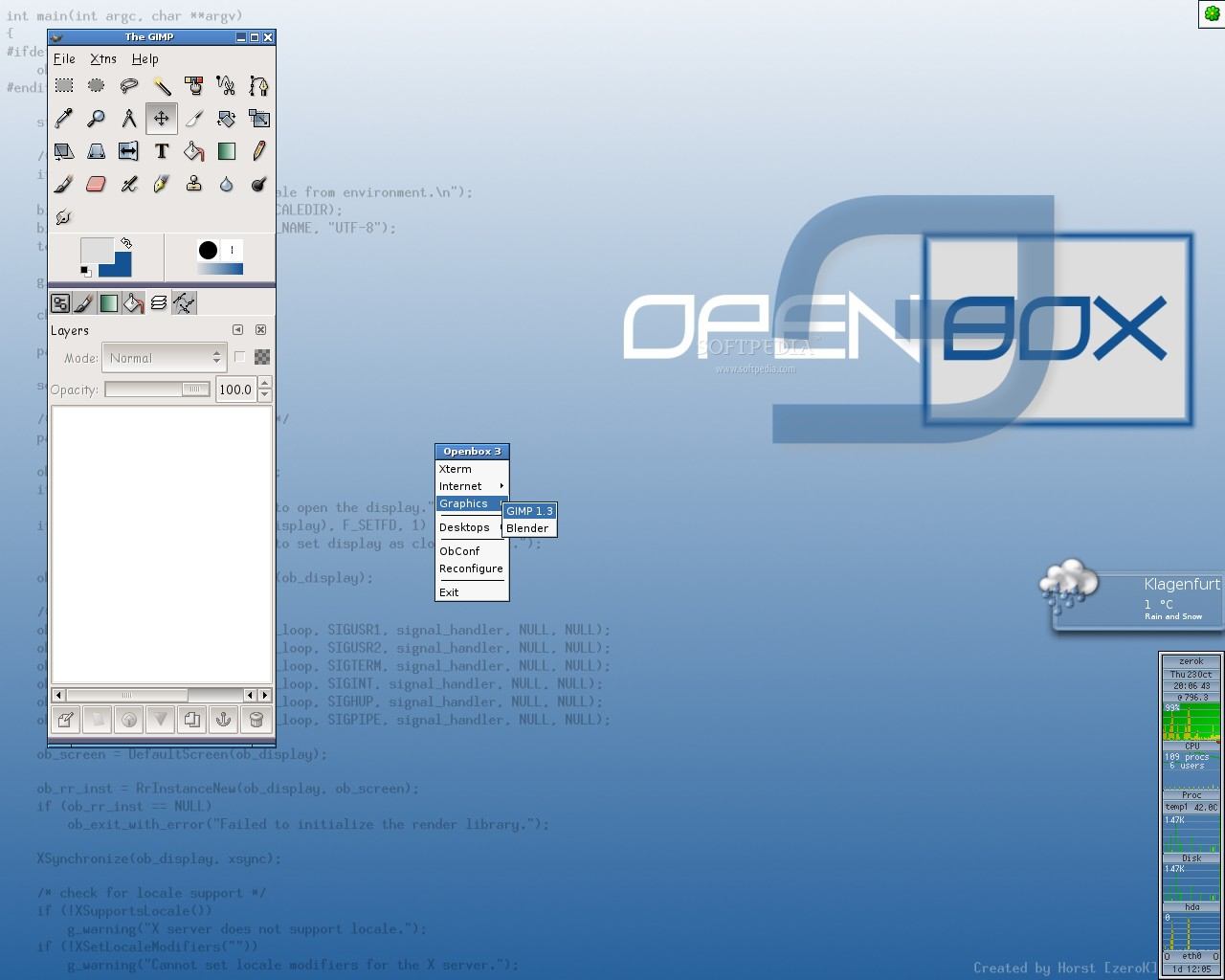
Openbox -

The Openbox Window Manager is easily the most popular Window Manager to date. It is favored due largely to how fast it is. It is recommended for use with both the LXDE and Razor QT desktops. Openbox is fairly flexible though and can be used all on it's own. If you are using pure Openbox it can look like a variety of things including:


ArchBang is a Linux distribution that utilizes just the Openbox Window Manager.

Follow Up

Which desktop is right for you will vary based on your needs. The best piece of advice I can give is try a few different ones out before settling on one. Hopefully you learned as much from reading this as I did from writing it. I believe I covered at least a small bit about each of what I believe to be all of the most important/major desktops. If I am missing anything or you would like to add something feel free to do so by adding a comment below.

Cheers,
~Jeff Hoogland

Senin, 07 November 2011

Bodhi Linux ARM Repository Online

Five months ago I did a post announcing that we are working to bring Bodhi to ARM devices. I've been rather quiet about this part of our project since then. We are still finalizing the direction this part of our project is headed in, but for now we have landed on the choice of Debian Wheezy as our core. Our repository is currently online and you can easily install our Enlightenment packages on top of your Debian Wheezy ARM install by following these steps:

Edit your /etc/apt/sources.list file and add the following line (yes squeeze is correct):

deb http://packages.bodhilinux.com/bodhi/ squeeze stable

Save and close the file and then run:

sudo apt-get update && sudo apt-get install bodhi-desktop

Let apt work it's magic and you will soon have our customized Enlightenment desktop installed on your system (there are even some extra E modules in the repo). Our goal is to get our ARM packages as polished and stable as our x86 release on a variety of hardware.
 
I've recorded a short demo video of these packages running in a Debian chroot on my Nokia N900:


As you can see, still a little rough around the edges - but we will be improving these in the coming months. If you wish to help us test packages be sure to leave us some feedback on our forums.

Finally, we will not be officially supporting ArchOS Gen8 devices as we had hoped. The number of lacking closed source drivers they require make it impossible for us to achieve the level of polish on these devices we would like to see. Note the steps above work for installing Bodhi packages on your ArchOS after installing Debian.

~Jeff Hoogland

Kamis, 27 Oktober 2011

Q&A with Enlightenment Lead Developer "Rasterman"

It's no secret that I am a huge fan of the Enlightenment desktop. I recently got into contact with the project's lead developer "Rasterman" and we did a little bit of a question and answer session. If you aren't sure on what all the Enlightenment desktop and the EFLs are exactly please see my post here.


How long have you been working on E for?

I remember when I started writing E. Dinosaurs were roaming the earth and things were much warmer... So that was back in 1996.

You've been the lead developer for Enlightenment for some time, did you work on any other desktop environments/projects prior to it?


Prior to enlightenment I was hacking on fvwm. fvm-xpm was a result of my
hacking and rxvt-xpm too. Beyond this I also wrote some trinkets like xflame (display flames in X in a window or on root even) xripple (create reflection ripples on your desktop background in x). Then I got sucked into the bottomless pit that is Enlightenment and have yet to escape.


What inspired you to create another desktop/window manager?

I had an itch. I scratched it. Frankly I just thought X was too plain and ugly
and needed some spicing up. I knew X could do it and people were just not
using the facilities it had, so I did.


In your opinion what are the EFLs strongest advantages over other libraries such as GTK or QT?

Smaller, leaner and built for a more modern graphics era. They are designed from the ground up as a scene graph. GTK and QT are just beginning to explore that and see the light. EFLs have been there and mature for many years now.

How much of Enlightenment/EFLs do you maintain personally?

Not all of them by any stretch. I mostly stick to ecore, evas, edje, embryo, eet, and elementary. Eina I throw things into now and again, but I don't tend to put a lot of time into that one. Efreet, e_dbus and eeze I mostly leave alone. E17 itself I do a large amount of work on still. Of course many others who work on these too to varying degrees, not just me, so it's a team effort.

How many active developers does Enlightenment currently have working on it?

In terms of fulltime developers spending 8+hours per day cranking out code, we have about 5 on a good day. If you just want to talk about the number of people actively sending in patches, it's about 20. If we had more manpower we could do so much more. Many developers just get distracted off into many other things (real life, their day jobs, other tasks etc.) most of the time.

Are you looking for more help with development?

ALWAYS!

Do you have any tips for aspiring programmers hoping to get started writing applications using the EFLs?

Start with the libraries that make things simplest - start with elementary.
It's the least code to get the most done. Work your way down. Get your head around the idea of a scene graph instead of immediate-mode rendering as well as a mainloop and callback-driven api's and you'll be golden.


I know Samsung funds Enlightenment development, do any other companies sponsor a sizable amount of development?

Right now, other than Profusion, not a sizable mount. There are smaller
companies involved here and there like ordissimo, calaos, free.fr, but I don't even know them all and have probably missed a few in my quick answer here.


Can you give us any hints about how Samsung plans to use the EFLs they are funding?

We are using them as part of a mobile platform that's basically a full Linux OS stack like your regular desktop linux distributions. It is being designed for mobile devices like smartphones, tablets, and god knows what else (that's all pretty obvious given that it's the mobile os r&d that is doing the work).

As a developer what is your take on Gnome 3 and Unity?

Unity - I haven't been looking at too closely, but my take is that it's causing
a lot of unhappiness amongst users. 


Gnome 3 - seems to have also created a lot of friction. Gnome 3 is now finally becoming tightly coupled like E17. They are in fact moving towards our model of things now, so I would guess it's a vote in favor for us having had the better model to begin with and being ahead of the curve. My general take on any environment that REMOVEs options from the user or makes them exceedingly hard to find or change, is that it does its userbase a disservice to the extreme. If you want to move options to "advanced" dialogs somewhere or something - fine, but removal is just bad.

Anything else you'd like to add/feel is worth mentioning?

In general I think EFL and E get a lot of things really RIGHT. We normally implement many things quietly without fanfare or blogs that you find other DE's and toolkits implementing with lots of publicity about their great new feature. We are a very behind-the-scenes group and are more conservative than most in actual publicity. This is something we really need to break out of somehow and improve. We don't "toot our own horns" enough. I really wish we had 1 or more people just devoted to doing public relations, blogs, announcements, press releases... the works.

I'd just like to say thanks to Raster for taking some time out of his day to field my questions. Hopefully you learned as much as I did.


Cheers,
~Jeff Hoogland
Rabu, 28 September 2011

Seven Things to do after Installing Bodhi Linux

So you've taken the plunge and opted to install Bodhi Linux. Perhaps you read a recent review or one of the screen shots in our gallery caught your eye. Either way you've got a newly installed system and you might be wondering what exactly to do next. The following are seven things that are a good idea to do on a cleanly installed Bodhi system.


1.) Check for Updates
Bodhi Linux has a semi-rolling release model. By this we mean you can easily upgrade from one minor version to the next and we continue to push out package updates in between releases. To update your Bodhi install open LXTerminal from your applications menu and run:

sudo apt-get update && sudo apt-get dist-upgrade

Enter your password, press enter and then let APT work it's magic.

2.) Read the Quick Start
There are a lot of hard working people on the Bodhi team that try to bring you the best documentation possible. At the same time we know there is a lot of information to absorb when first using Bodhi. Because of this we have assembled everything you need to know to get started right off the bat in one handy guide. It is well worth taking a short while to look it over.

3.) Install Some Software
One of the things you will note about Bodhi Linux is that we have a minimal application set that gets installed by default. Fear not though - there are two powerful, graphical tools at your disposal for installing more software on Bodhi. 

The first is our Application Center. Navigating to this page in the default Midori browser allows you to easily find and install an application for almost every task you can think of with just a few clicks. If you are not certain what software you might need we have assembled to application "packages" that each contain a group of software for making your computer fully functional. Our "Nikhila Application Set" is fully loaded for most any task you can think of and the "Pratibha Application Set" provides a full range of lighter applications that should run quickly even on older computers.
Feel free to take some time to look at all the other software that is listed on the page as well. Maybe even install a game or two.

Can't find what you are looking for on our software page? Don't worry - you can also find Synaptic package manager in your menu which will let you find and install anything in the Bodhi, GetDeb or Ubuntu repositories.

4.) Install Multi-Media Codecs
If you use VLC for your media needs or you only use open source codecs you can skip this step. However if you wish to use a music player such as Clementine or a video player such as mPlayer then you will need to install system wide codecs to support different types of media. You can install media codecs to support almost every media type that exists here. If you also plan to use your Bodhi machine for DVD playback you will also need to install the DVD library from here.

5.) Customize your Appearance
While Bodhi comes with a fairly good range of themes installed by default there are plenty more to be found! You can find over thirty different themes to choose from here. Find the one that best fits you taste/personality. If you are looking for even more customization you can find twenty different icon themes to easily install on your Bodhi system here.


6.) Get to Know Your Profiles
Not to be confused with your "theme", your selection of profile in the Enlightenment desktop determines how your desktop is laid out. When you first installed Bodhi you where asked what type of layout you wanted to have - this was the profile selection. If you come to discover after installing that you don't like your first profile choice (or simply want to try the others), you can easily change it without a reinstall. You can learn how to change profiles and many other things they can do here.


7.) Join the Community
We are generally a friendly lot. If you have a question you can't find the answer to in our document wiki (or if you just want to say hi). Let us know! You can chat with us on our forums or in #bodhilinux on FreeNode IRC.

Have any general questions feel free to drop a comment below as well.

~Jeff Hoogland
Rabu, 14 September 2011

Bodhi Linux Powered Tablet/Netbook Give Away

Bodhi Linux 1.2.0 has been out of the gate for a full week now and I must say we are truly pleased with the response we have received. There has been a spike of new users present on our forums and our ISO image has seen over 16,000 downloads in this week's worth of time. We have also garnered more than a little bit of notice on Distro Watch, managing to snag the #1 position for the 7 day time span:


Something you may not know is that unlike many Ubuntu derivatives, Bodhi maintains it's own repositories. While these are vital to our operation they are costly. Our operating costs are now over 100 USD per month. My post today is simply to ask that if you are using Bodhi and like what you see please consider sending us a donation.

Well, that is not all this post is about.

If you've stopped by my blog recently then you may know that I recently acquired a Dell Duo while I waited for my Asus tablet to return to a working state. I'd like to offer a little bit of incentive to send us a donation. Starting today for every 5$ you donate to the Bodhi project your name will be entered (EG: 10$ = 2 entries) in a raffle to have a chance to win a less than one month old Dell Inspiron Duo tablet/netbook hybrid pre-configured with Bodhi Linux. The retail value on this unit is 600$.


Tech Specs on the Unit for those interested:

CPU
CPU Type
Intel Atom
CPU Speed
N570(1.66GHz)
Chipset
Chipset
Intel NM10
CPU
CPU L2 Cache
512KB x 2
Display
Screen Size
10.1"
LCD Features
Capacitive Multi-touch technology
Resolution
1366 x 768
Graphics
GPU/VPU
Intel GMA 3150
Video Memory
Shared system memory
Hard Drive
HDD
320GB
HDD RPM
7200rpm
Memory
Memory
2GB
Memory Speed
DDR3 800
Memory Type
204-Pin DDR3 SO-DIMM
Memory Spec
2GB x 1
Memory Slot (Total)
1
Memory Slot (Available)
0
Communications
WLAN
802.11n Wireless LAN
Bluetooth
Bluetooth 3.0
Ports
USB
2
Audio Ports
1 x Microphone jack; 1 x Headphone jack
Audio
Audio
2 X 1W speakers for total of 2W standard
Supplemental Drive
Card Reader
7 in 1 Card Reader with Audio Station Only
Webcam
1.3MP
Power
Battery
4-cell Lithium Ion Battery (29 WHr)
Battery Life
up to 4 hours
Physical spec
Dimensions
11.22" x 7.66" x 1.03" - 1.13"
Weight
3.39 lbs.

I will be holding the window for entries open for at least four weeks and we will not select a winner until we have at least 200 entries. Also, please be aware that if you are selected as the winner and shipping costs from Chicago to your home exceed 50$ you will be expected to cover the excess (50$ should be more than enough, but some countries have outrageous import fees).  Included with the tablet is the optional speaker dock.

So, if you have been thinking about sending us a donation then now is the right time! Oh, and in case you missed it our donation page can be found here. If you prefer to send a donation via check instead of paypal please contact me directly for my mailing address. When we do select a winner it will be posted on this blog as well.

Finally, in addition to funding the server costs mentioned above for many months, if this donation drive is successful it will also subsidize the cost of a Trim Slice unit to make the development of Bodhi for ARM more practical.

Cheers,
~Jeff Hoogland